Loading Plain Paper
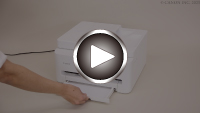
-
Prepare paper.
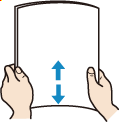
Align the edges of paper. If paper is curled, flatten it.
 Note
Note-
Align the edges of paper neatly before loading. Loading paper without aligning the edges may cause paper jams.
-
If paper is curled, hold the curled corners and gently bend them in the opposite direction until the paper becomes completely flat.
For more details on handling curled paper, see Check 3 in Printed Surface Is Smudged/Scratched/Ink Blots/Paper Curl/Paper Is Smudged During Automatic 2-sided Printing.
-
-
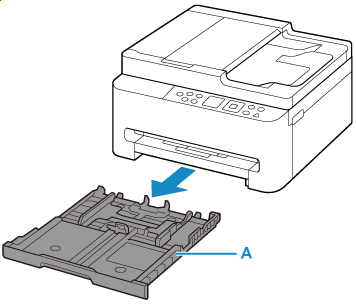
Pull out the cassette (A) from the printer.
-
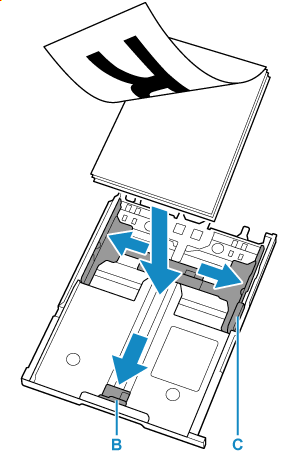
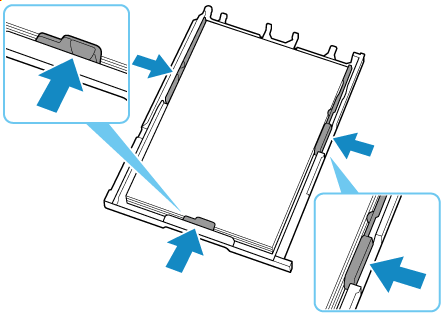
Slide paper guides (B) in front and (C) on right to open guides.
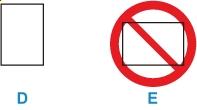
Load paper stack in portrait orientation WITH THE PRINT SIDE FACING DOWN, and place it in center of cassette.
 Important
-
Always load paper in portrait orientation (D). Loading paper in landscape orientation (E) can cause paper jams.
Note-
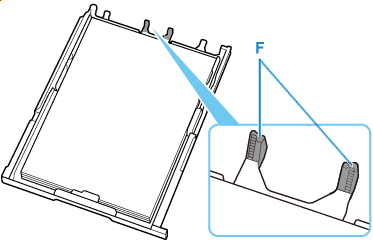
Align paper with the line on the cassette to load.
Paper may not be fed into the printer correctly if it presses against the protrusion (F).
-
-
Move the paper guide and adjust the guides to edge of the paper stack.
Do not slide the paper guides too tightly against the paper. The paper may not be fed properly.
 Note
Note-
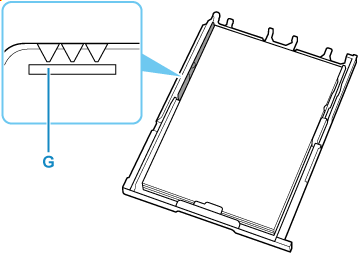
Do not load sheets of paper higher than the load limit mark (G).
-
-
Insert cassette into printer.
Push the cassette into the printer until it stops.
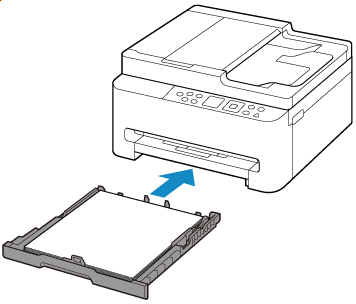
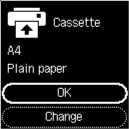
After inserting the cassette into the printer, the paper setting confirmation screen for the cassette appears on the LCD.
-
If page size on LCD matches size of paper loaded in cassette, select OK.
If not, select Change to change the settings in accordance with the size of the loaded paper.
 Note
Note-
See Detect paper width when you want to hide the screen for confirming the setting of paper.
-
-
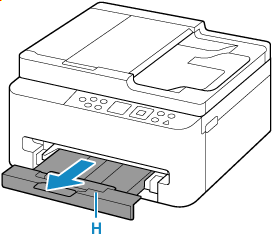
Pull out the paper output tray (H).
Note
-
To prevent incorrect printing, this printer has a function that detects whether the settings for the paper loaded on the cassette matches the paper settings. Before printing, make print settings in accordance with the paper settings.
